

Latest Events
Upcoming Events only on Aliv
News & Updates
no
i said nooo

aliv events app
Download ALIV Events mobile application, secure your spot and Enjoy ALIV events
Tickets sold on the ALIV Events app and website can be purchased with a debit or credit card.
Android
Go Mobile
Just show your mobile ticket on your phone to get in.

Apple
Get Tickets Fast
Buy tickets on your phone and secure your spot.

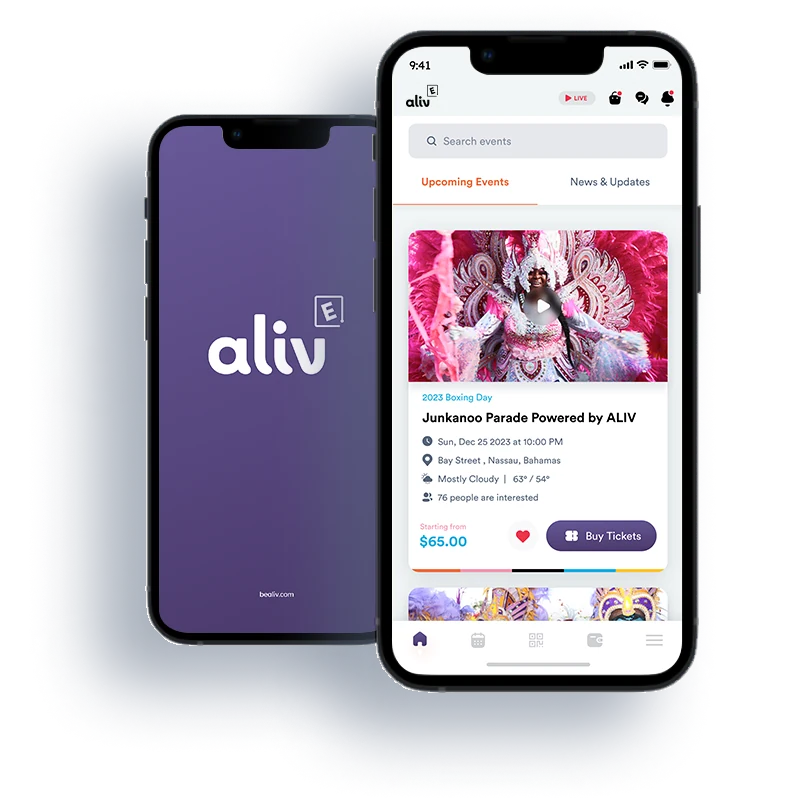
ALIV Events
FAQs
2. For the safety of people at the Event, the venue management and the Organiser reserve the right to refuse admission and conduct security searches as they deem appropriate.
3. Tickets cannot be exchanged or refunded after purchase.
4. In the event that you are unable to attend due to any Covid-19 Government regulation or restriction introduced after the purchase date e.g., vaccine passports, your ticket will be transferred to a future Event, and cannot be refunded after the purchase.
5. If the Event is rescheduled, the Organiser will give you the option of either retaining or exchanging your ticket(s) for the new date. If the Event is cancelled, you may be offered the option to transfer your ticket to a future event or a refund on your ticket(s).
6. If the Event is rescheduled, changed, moved, or cancelled the Organiser cannot be held responsible for any resulting costs you may incur for travel, accommodation and other related goods, services, or compensation.
7. Defaced or altered tickets will become void and the holder will be refused admission.
8. Tickets cannot be resold for commercial gain. If we have reason to believe that tickets have been resold, they will be invalidated, and the holder will be refused admission.
9. The Organiser reserves the right to alter or vary the content or timing of any part of the Event in circumstances beyond its reasonable control without any obligation to make any refunds or exchange tickets.
10. The Organiser reserves the right to refuse admission or to eject any person appearing to be intoxicated, under the influence of drugs, showing signs of Covid-19 including a high temperature or a persistent cough, behaving dangerously or inappropriately, or for any other behaviour likely to cause damage, injury, nuisance, and annoyance or for failure to comply with the
Contrary to popular belief, Lorem Ipsum is not simply random text. It has roots in a piece of classical Latin literature from 45 BC, making it over 2000 years old.
You can reach ALIV Events support at events.support@bealiv.com for any inquiries or assistance.
It is strongly advised not to share your tickets with anyone. ALIV will not be responsible if your ticket is shared and someone else uses it to get scanned and enter the event before you. Each ticket is intended for single use only, and its security is compromised if shared.
No. Credit and debit card information will absolutely not be stored within the app.
Unfortunately, all sales are final. Junkanoo Tickets are non-refundable. Contrary to popular belief, Lorem Ipsum is not simply random text. It has roots in a piece of classical Latin literature from 45 BC, making it over 2000 years old.
Yes, you can however customers are allowed to purchase up to 10 tickets at a time.
The process for ticket scanning and validation is as follows:
- Digital Tickets: All digital tickets will be scanned at individual checkpoints from the ALIV Events App ONLY. Make sure to have your digital ticket ready in the app for scanning.
- Physical Pre-Printed Tickets: Tickets that are pre-printed from the JCNP (Junkanoo Corporation of New Providence) will be checked and honored at the event.
Other Tickets: Any other form of tickets will be validated according to specific event protocols.
Note: No, screenshots or printed copies of digital tickets are permitted for scanning at the gates. The only physical tickets allowed are official printouts from the Junkanoo Corporation of New Providence (JCNP) for all 13 sections. All other customers must present their digital ticket directly from the ALIV Events wallet on their mobile device for entry.
- To transfer a ticket from your digital wallet, begin by accessing the wallet icon or the tab labeled 'wallet.' Choose 'My Current Tickets' and the desired Event Name to view the tickets for transfer. In the upper right corner of the Event Name section, click on 'Transfer.'
- A pop-up window will appear; enter the mobile number of the individual to whom you want to transfer the tickets, and then click 'Send.
- Another pop-up will appear, allowing the sender to choose the specific tickets they wish to transfer. Once selected, click 'Transfer Now.
- Upon completion, a pop-up will appear, stating, 'Congratulations! Your ticket has been transferred successfully to “XXXX.”' Press 'Close' to return to the main Wallet page.
- To review the transfer details, select 'Transfer History' to see the recipient of the ticket.
To locate the entry gate for your ticket, follow these guidelines:
- Look for Section Name and Entry Gate: On your ticket, find the area labeled 'Section Name and Entry Gate'. The appropriate letter or number here will indicate your specific gate entry.
- Identify Parade of Choice: This section will also specify the parade you have chosen to attend.
- Check Seat and Row Number: Additionally, your ticket will display the seat and row number, providing clear guidance on where you will be seated.
The seat is placed on hold for a duration of 5 minutes. During this period, the seat is temporarily reserved for you and is unavailable for purchase by other customers. If the purchase is not completed within this 5-minute timeframe, the seat will be released back into the available pool for resale.
- To access your Digital Wallet via the app, click on the wallet icon. Once there, you will find your tickets listed in the 'My Current Tickets' tab. Select the Event Name of choice to view your tickets.
- When using the website, navigate to the Wallet tab and visit the 'My Current Tickets' tab. Select the Event Name of choice to view your tickets.
To access your tickets, please follow these steps: one
- Active ALIV EVENTS Account: Ensure you have an active ALIV Events account.
- Your tickets can be accessed from the Digital Wallet, which is available both through the app and the website.
Credit and debit cards will be the primary form of payment in the app.
Junkanoo tickets can be purchased either online via the ALIV Events App or ALIV Events Website or with cash at the ALIV Harbour Bay and Cable Beach store. Here are the methods:
Online Purchase:
- Choose Payment Method: Use a Credit Card through the app* or website. Test
- Select Event and Tickets: After choosing the Event Type, click "Buy Tickets." Specify the section and preferred seating, then click "Buy Tickets" again.
- Verification Page: Confirm your seats on the verification page, then select "Buy Tickets" again.
- Payment Details: Enter payment details on the payment page, which includes a 5-minute timer, and click "Confirm Payment."
- Confirmation: After approval, you'll be redirected to a confirmation page and receive an SMS and email notification.
- View Tickets: Your tickets can be viewed from your Digital Wallet:
- From the app, click on the wallet icon. Once there, you will find your tickets listed in the 'My Current Tickets' tab. Select the Event Name of choice to view your tickets.
- When using the website, navigate to the Wallet tab and visit the 'My Current Tickets' tab. Select the Event Name of choice to view your tickets
Cash Purchase:
- Pre-Registration Required: If paying by cash, pre-register on the app or website.
- Visit ALIV Locations: Go to either the Harbour Bay or Cable Beach ALIV locations.
- Account Verification at Store: Show your account on the app or website to the agent, and provide the mobile number used for sign-up. The agent will also verify your email.
- Ticket Sent to Digital Wallet: The ticket will be sent to your digital wallet using the mobile number provided.
- Confirm Receipt: Before leaving, confirm the receipt of the ticket in your mobile wallet with the agent.
Download the ALIV Events app from the Android Play Store or Apple App Store.
- Open the App: Start by opening the app on your device.
- Create Account: Select the 'Create Account' option.
- Select Country and Enter Mobile Number: Choose the correct country and enter your mobile number.
- Sign Up: Click on 'Sign Up'.
- Enter OTP: You will receive a 4-digit OTP code via SMS. Enter this code in the app.
- Validate OTP: Select 'Validate' to confirm the OTP.
- Enter Profile Details: Fill in your profile details, ensuring you provide a valid email address.
- Create My Account: Click on 'Create my account'.
- Email Validation: An OTP code will be sent to your email for validation. (If you don't receive the code, or if you notice an error in your email address, you can select 'Change Email Address' to correct it.)
- Enter Email OTP: Enter the 4-digit OTP code that you receive via email.
- Final Validation: Select 'Validate' to complete the process.